
Parental controls have evolved massively in recent years. There currently exists a wide range of parental controls that can operate on a specific device, on the network itself, and they can even monitor social media accounts. They are highly customizable, adjustable for different ages, and available in a variety of price points. This article will serve as an overview for parents and caretakers to better understand the options available to them.
Default Parental Controls
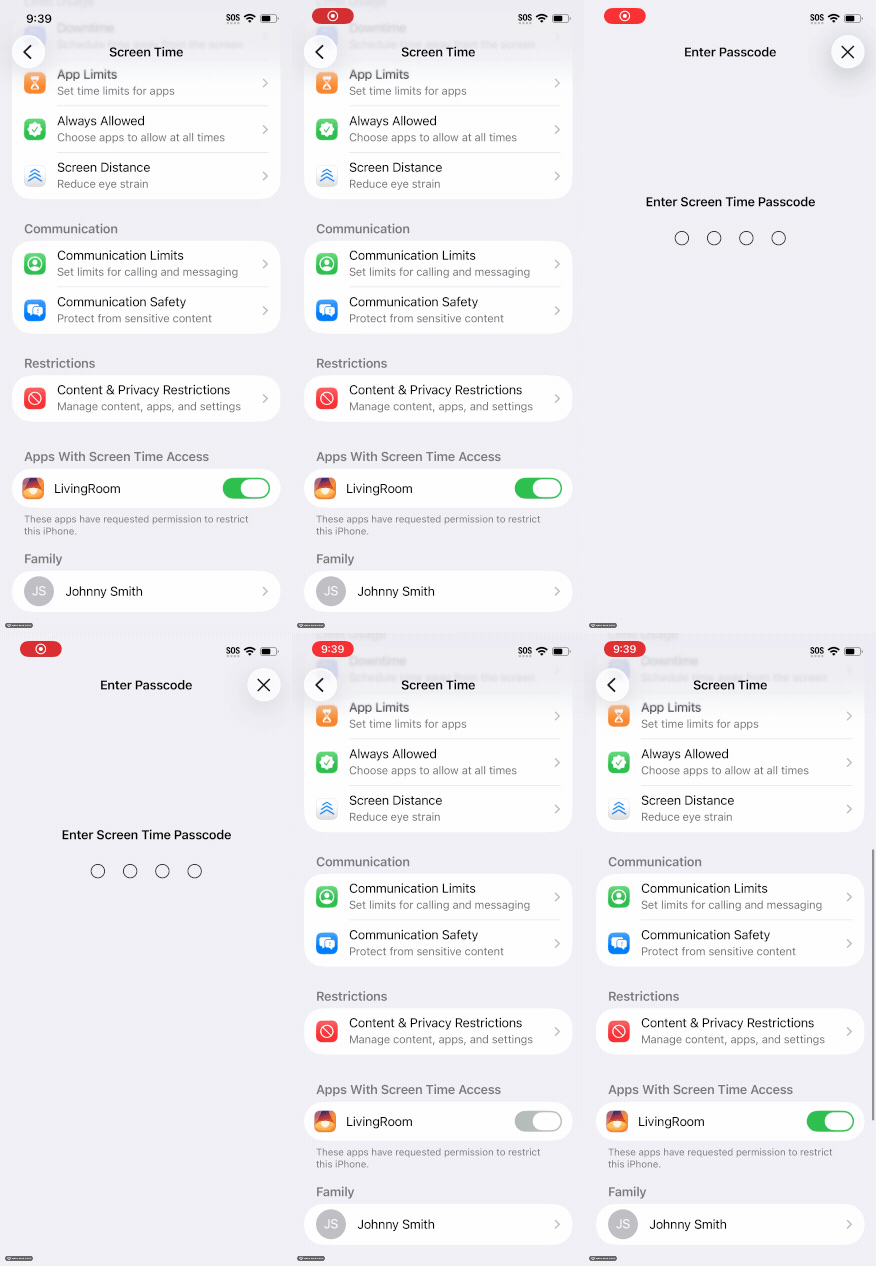
Apple Screen Time: iOS (Free)
In the iOS 26 update, Apple introduced major changes to the Screen Time settings panel. It is entirely free, and parents can now block specific applications, block in-app browsers, and manage the device's contact list. The pin can be completely different than the typical pin or Face ID used to unlock the device. You can even manage the Screen Time app remotely using Apple Family Sharing, provided your child's device is linked as a supervised account.
Google Family Link: Android (Free)
Google Family Link is Android's built-in parental control system. It features location tracking, content filtering on Google Search and Chrome, and the ability to block specific applications. Parents can set a daily time limit per app and lock the device remotely. One limitation worth noting: once your child turns 13, Google automatically prompts you and your child to update their account. Your child then has the ability to request that supervision is removed.
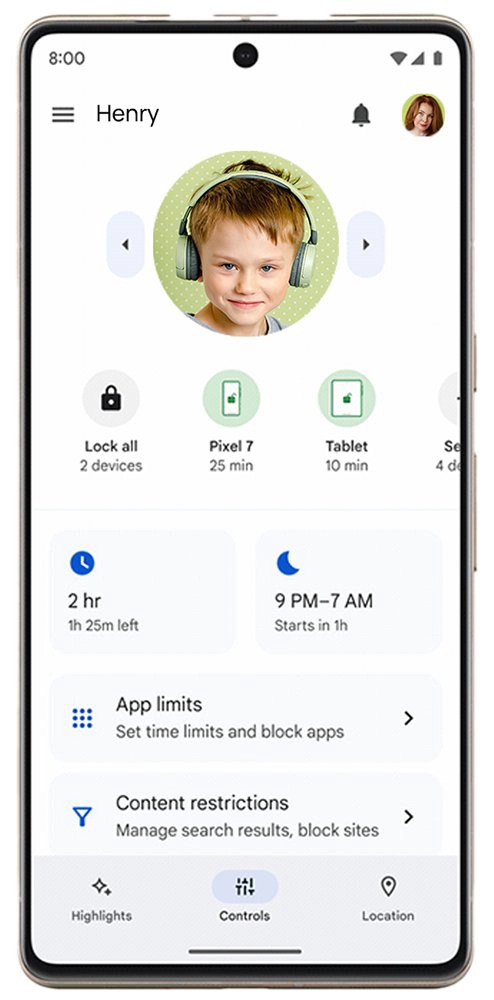
Both Google Family Link and Apple Screen Time lack the depth of the third-party services below, especially when it comes to monitoring, but they are completely free and anything is better than nothing.
Microsoft Family Safety: Windows (Free)
Microsoft Family Safety is Windows' built-in parental control system. It can be managed through a Microsoft family account. Parents can restrict websites, limit apps by age rating, set daily screen time limits, and view activity reports. It also extends to Xbox, making it useful for families where gaming is a concern.
Apple Screen Time: macOS (Free)
Screen Time is also available on macOS, offering the same app restrictions, website filtering, and time limits as on the iPhone. If your family uses Apple Family Sharing, controls can be managed across both Mac and iPhone from the same dashboard.
Paid Third-Party Services
Bark
Bark is one of the most interesting developments in parental controls. It has the standard features of parental control software, but more importantly it is a monitoring tool that will alert parents when inappropriate content is detected. It can monitor messages across all the major platforms, including Tiktok, Instagram, Discord, iMessage, and many others. According to the company, Bark has prevented 33 suicides, 12 school shootings, and several bomb threats.
- Bark Junior $5 a month, basic filtering, screen time controls, and location tracking
- Bark Premium $14 a month, full AI monitoring across 30+ platforms
- Bark Home $79, physical network device to manage specific devices on your network, managed all directly from the app
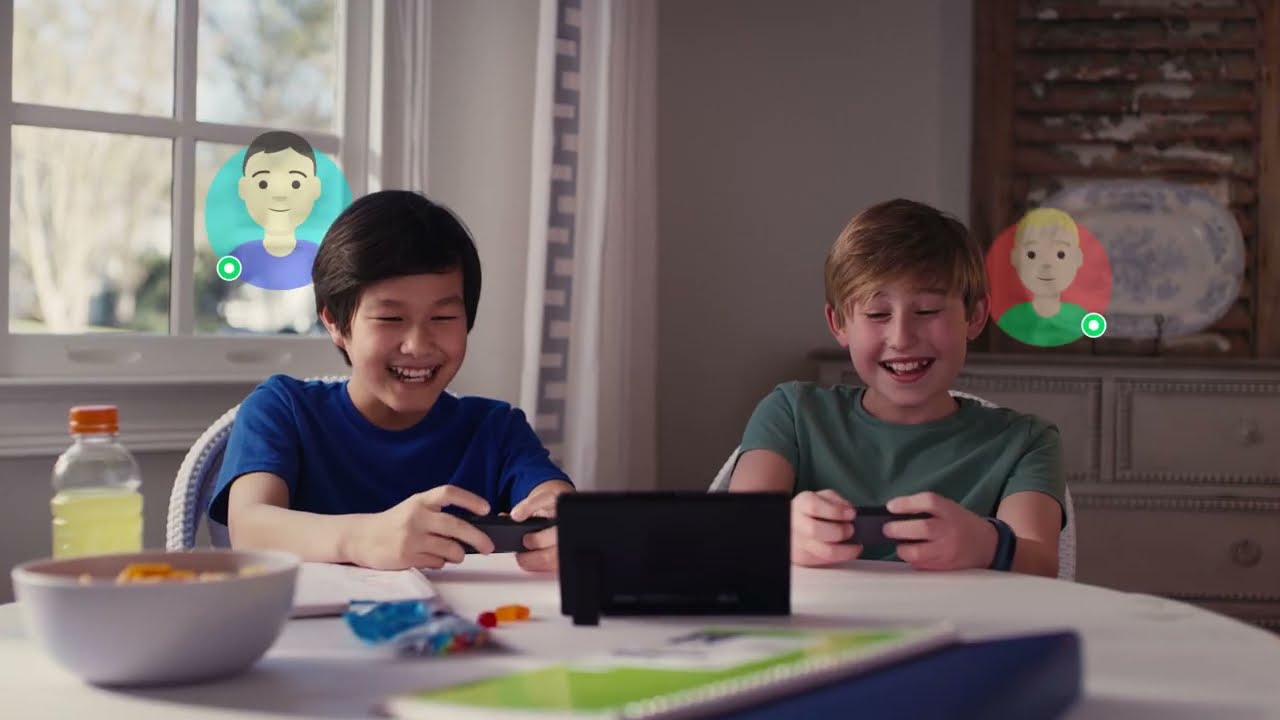
"How Bark Works" - Bark
Bark is more useful on Android devices, as message monitoring on iOS only works over Wi-Fi rather than cellular, though content filtering and location tracking still function regardless. The Discord monitoring is also Android only. Another limitation, it can block applications on a schedule, but you cannot set specific daily time limits.
Qustodio
Qustodio is one of the most established names in parental controls, trusted by over six million families worldwide. Unlike Bark, it takes a more granular approach, allowing parents to set daily time limits for specific applications rather than simple schedules. It does offer message monitoring on WhatsApp, Instagram, and Line on Android, alerting parents to concerning content, though this is unavailable on iOS. For platforms like TikTok and Discord, however, it can only track usage time rather than message content.
- Free, one device with basic protection
- Basic $59.95 a year, up to 5 devices, core filtering, and screen time features
- Complete $109.95 a year, unlimited devices, YouTube monitoring, geofencing, and calls & messaging monitoring

"Qustodio review 2026 | A new kind of parental control apps?" - Cybernews
On iOS, calls and SMS monitoring is technically available, but requires a companion app running on a Mac or Windows computer on the same Wi-Fi network, making it far less practical than on Android, where it works natively. As with Bark on iOS, those features are not available on cellular. At the end of the day, Apple's restrictions limit what's possible on iOS.
Qustodio also offers desktop monitoring for both macOS and Windows. This includes web filtering, screen time, and app controls. This is likely one of the best options for families where a laptop or computer is in the daily mix for your child.
Router Level Filtering
Filtering traffic at the network level is the gold standard when it comes to preventing access to inappropriate content on your home network. As previously mentioned, Bark Home, Bark's physical network device can be used to manage individual devices. You can manage individual devices, set schedules, and filter content across your entire network, including devices that cannot run the Bark app such as gaming consoles and smart TVs.
If you're looking for a more affordable solution that simply filters inappropriate content, you can add CleanBrowsing to your router's DNS settings for free. It will assist in blocking adult content, malware, and phishing sites. Here is a guide on adding DNS filtering to your router.
Evading Parental Controls
It would not be unexpected for your child to attempt to evade parental controls to access blocked content and escape time restrictions. This could start with the creation of a second social media account that isn't actively monitored by you or your chosen tool. If your child is more tech savvy, as many are these days, they may even install a VPN to evade DNS filtering.
Implementing parental controls can quickly become a cat and mouse game between you and your child. It's worth remembering it's natural for preteens and teens to seek further independence from their parents, but that there are also lurking threats on the internet that they may not fully understand. Parental controls can also be used simply to reduce screen time, as research is increasingly linking excessive screen time to negative effects on cognitive development. The goal isn't to win the cat and mouse game, but to have an open conversation with your child about why these tools are in place and what you are trying to protect them from.